VirMolAnalyte V2.0 modules
Five GUI Modules
A compact map of the current desktop interface: guided AI workflow, molecular screening, fragment attribution, database creation, and standalone structure drawing.
This section documents the current main tabs in virmol_gui.py. The order below matches the GUI tab order:
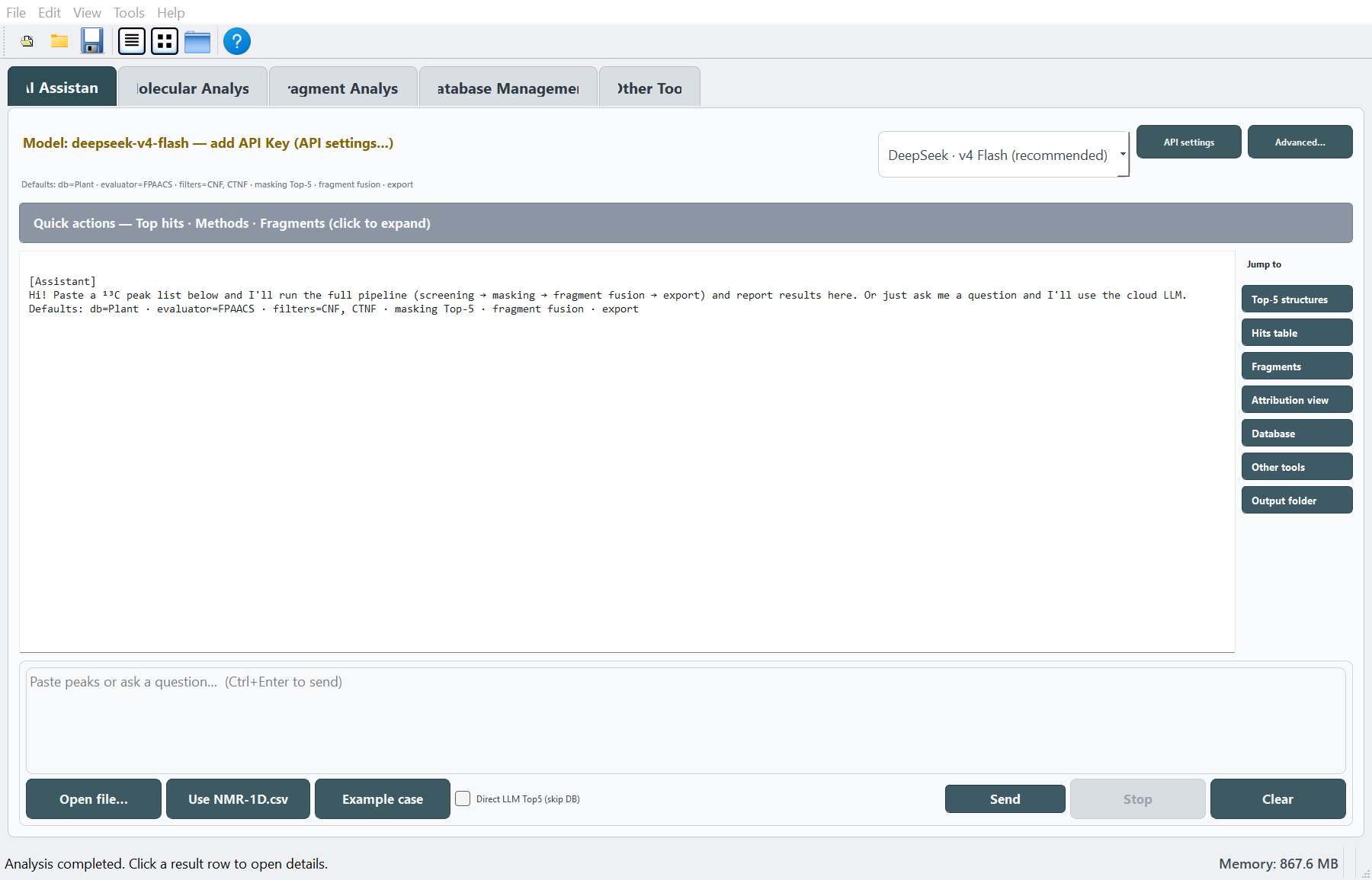
- AI Assistant
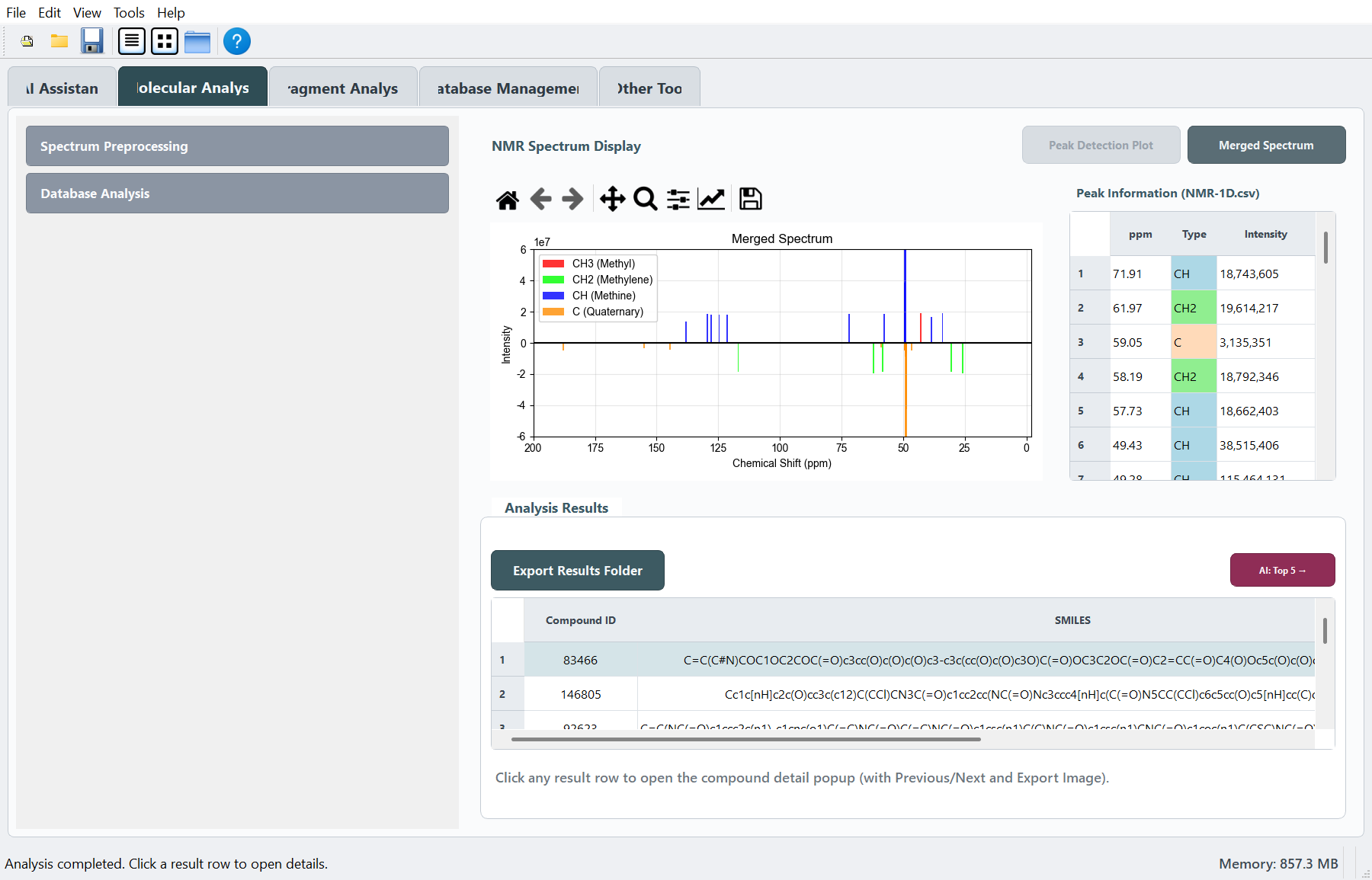
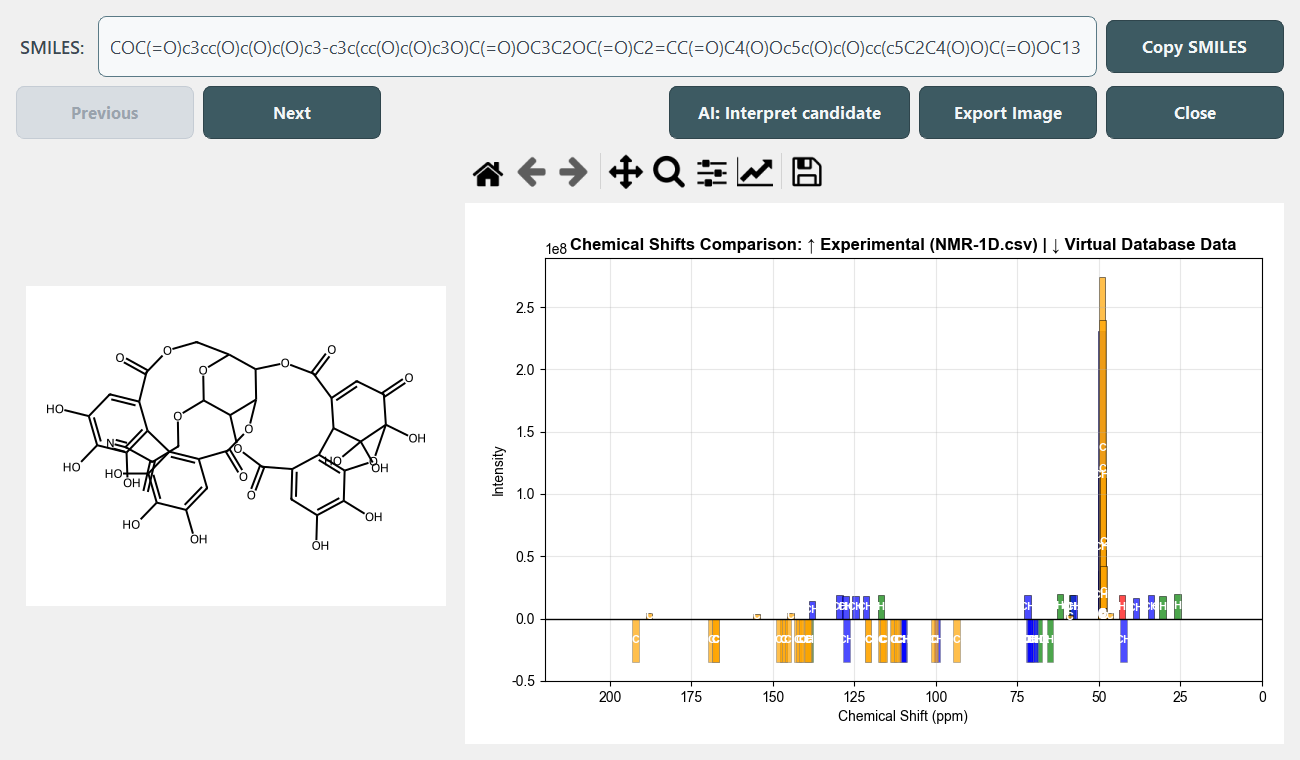
- Molecular Analysis
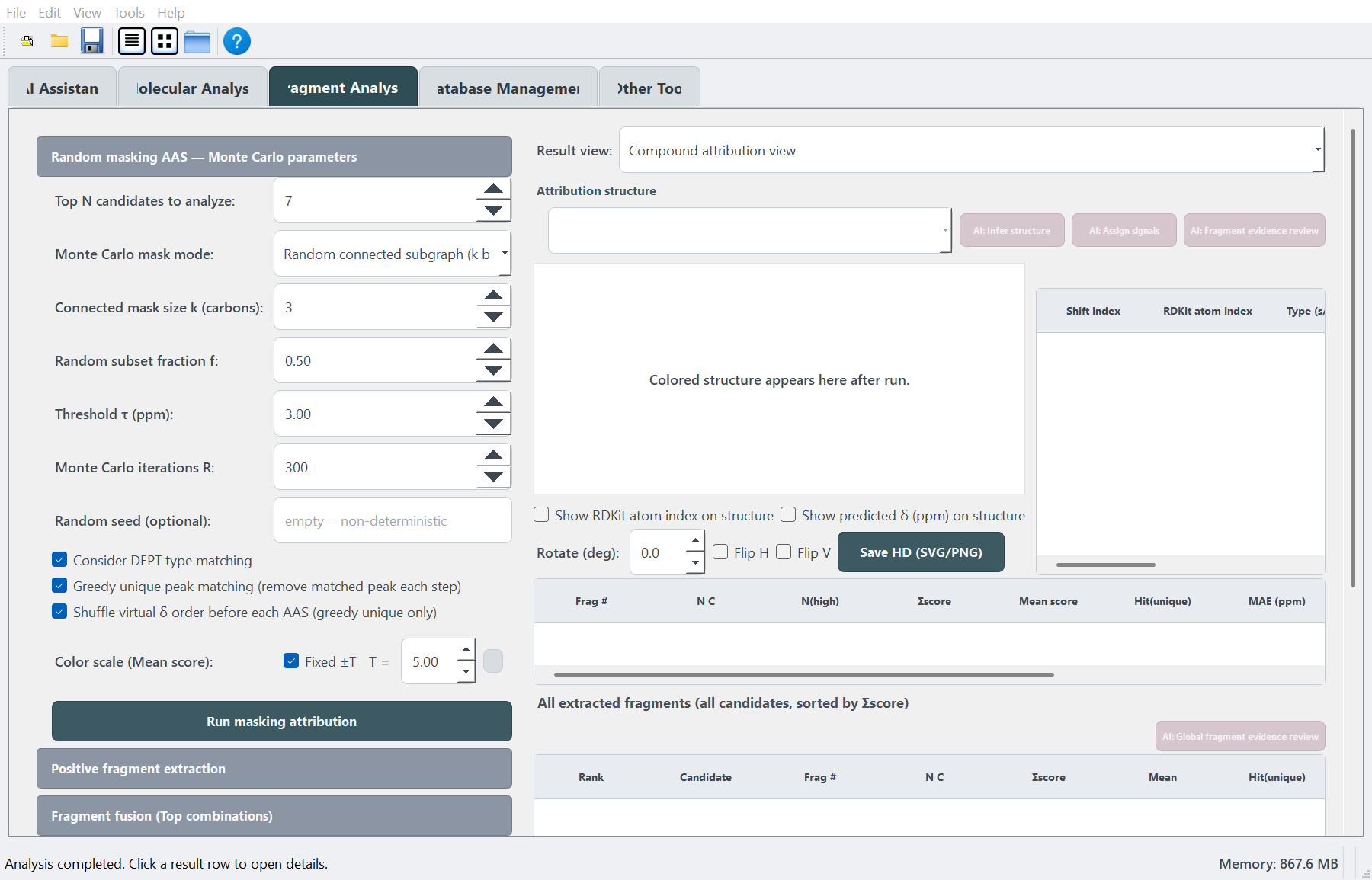
- Fragment Analysis
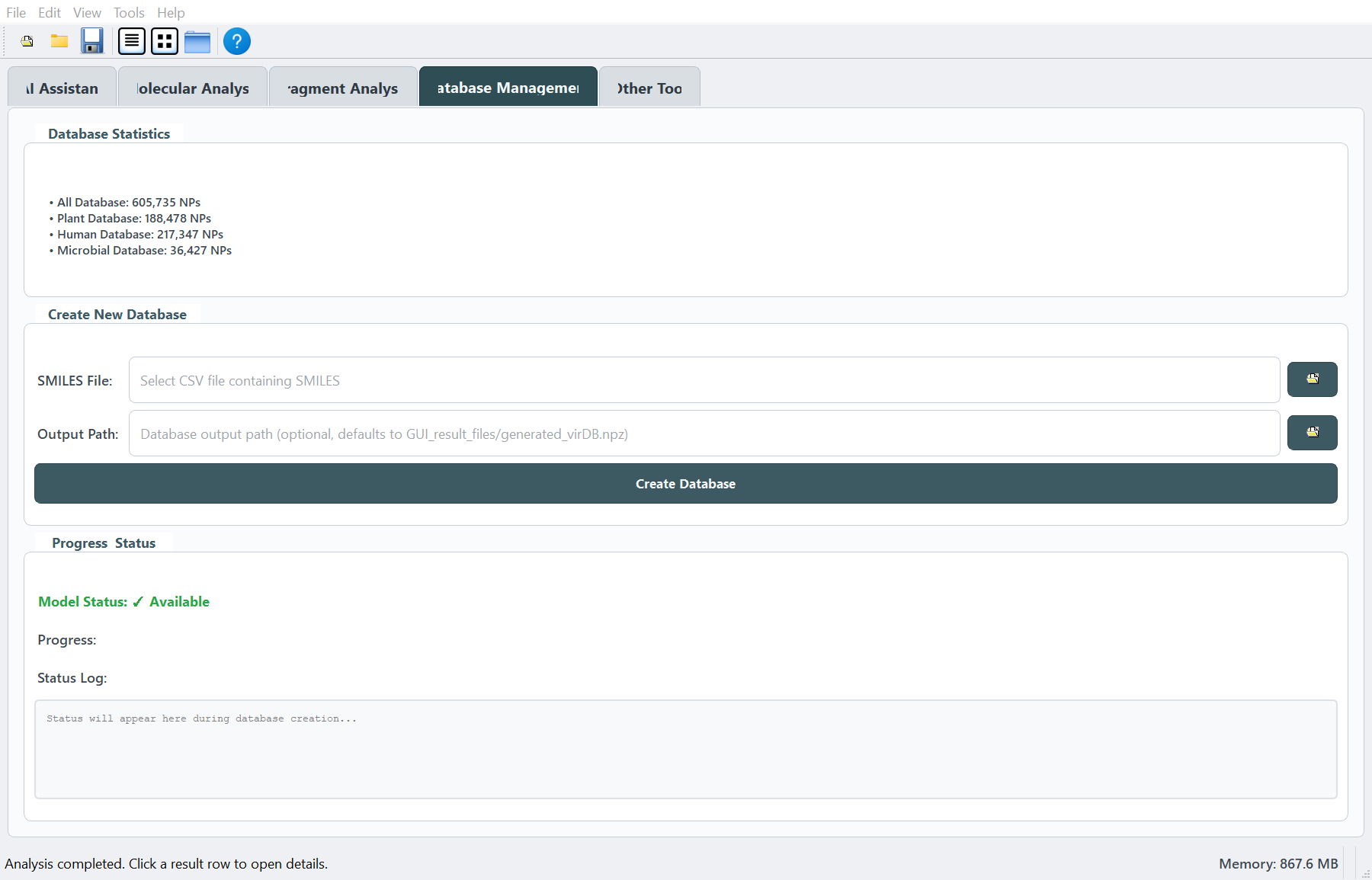
- Database Management
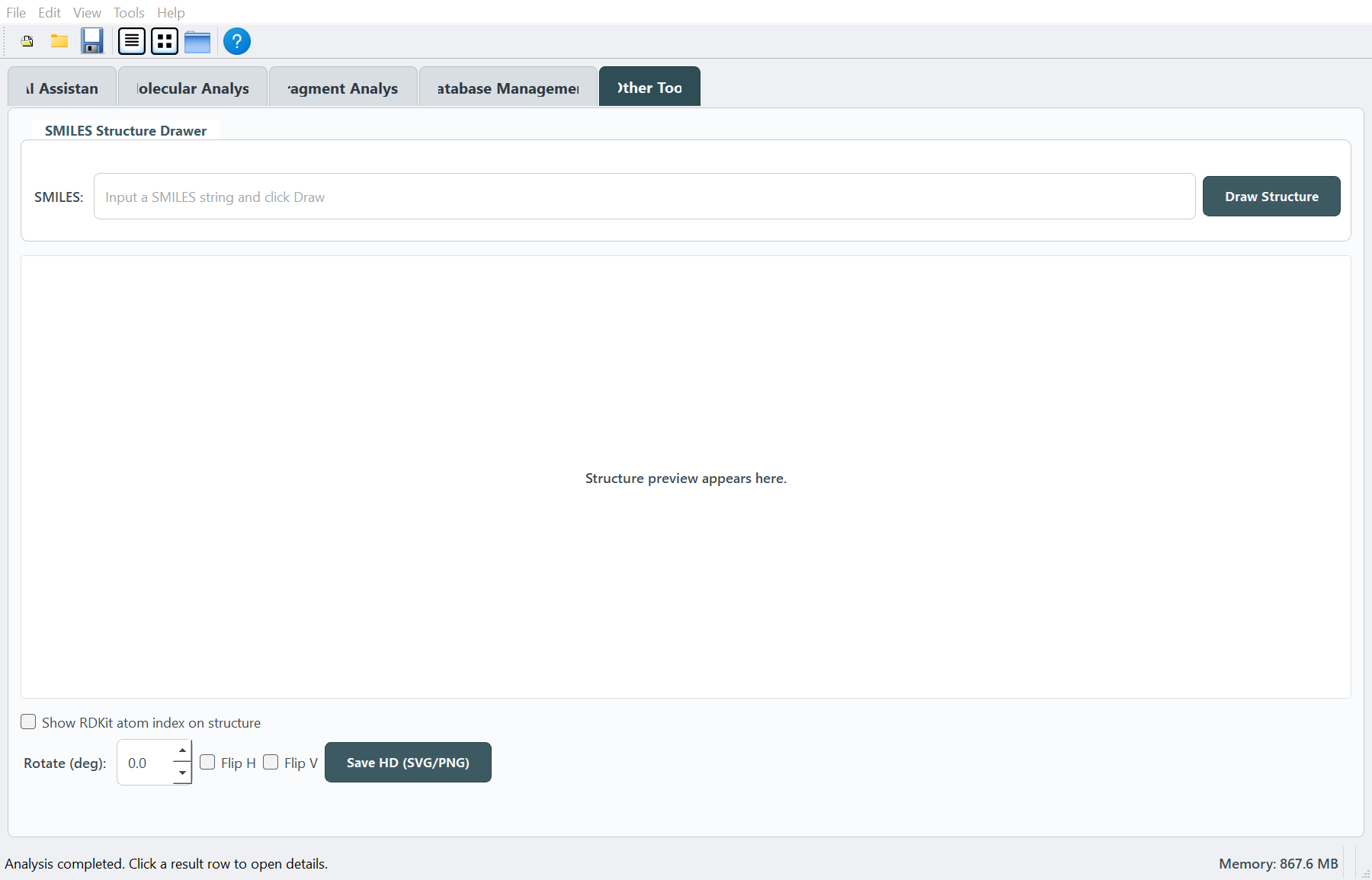
- Other Tool
For a first run, most users should start with Molecular Analysis unless they want the guided workflow in AI Assistant.
Module list
| GUI order | Tab name | Main purpose | Manual |
|---|---|---|---|
| 1 | AI Assistant |
Guided screening workflow, preflight diagnosis, offline tools, and optional cloud LLM interpretation | Open |
| 2 | Molecular Analysis |
13C/DEPT preprocessing, manual peak input, database screening, hit table, compound details, and export | Open |
| 3 | Fragment Analysis |
Masking AAS attribution, positive fragment extraction, spectrum maps, fusion, and fragment-level AI review | Open |
| 4 | Database Management |
Build custom .npz molecular libraries from SMILES files |
Open |
| 5 | Other Tool |
Standalone SMILES structure drawing and HD SVG/PNG export | Open |
Recommended workflow
flowchart LR
  A["AI Assistant (optional guided entry)"] --> B["Molecular Analysis"]
  B --> C["Fragment Analysis"]
  D["Database Management"] -. "custom .npz" .-> B
  E["Other Tool (standalone drawing)"]
- AI Assistant: optional guided entry point for users who want workflow help or LLM-assisted interpretation.
- Molecular Analysis: required for database screening and the main source of candidate hits.
- Fragment Analysis: optional downstream evidence workflow after screening results exist.
- Database Management: independent utility for creating custom databases used by Molecular Analysis.
- Other Tool: independent SMILES drawing/export utility.
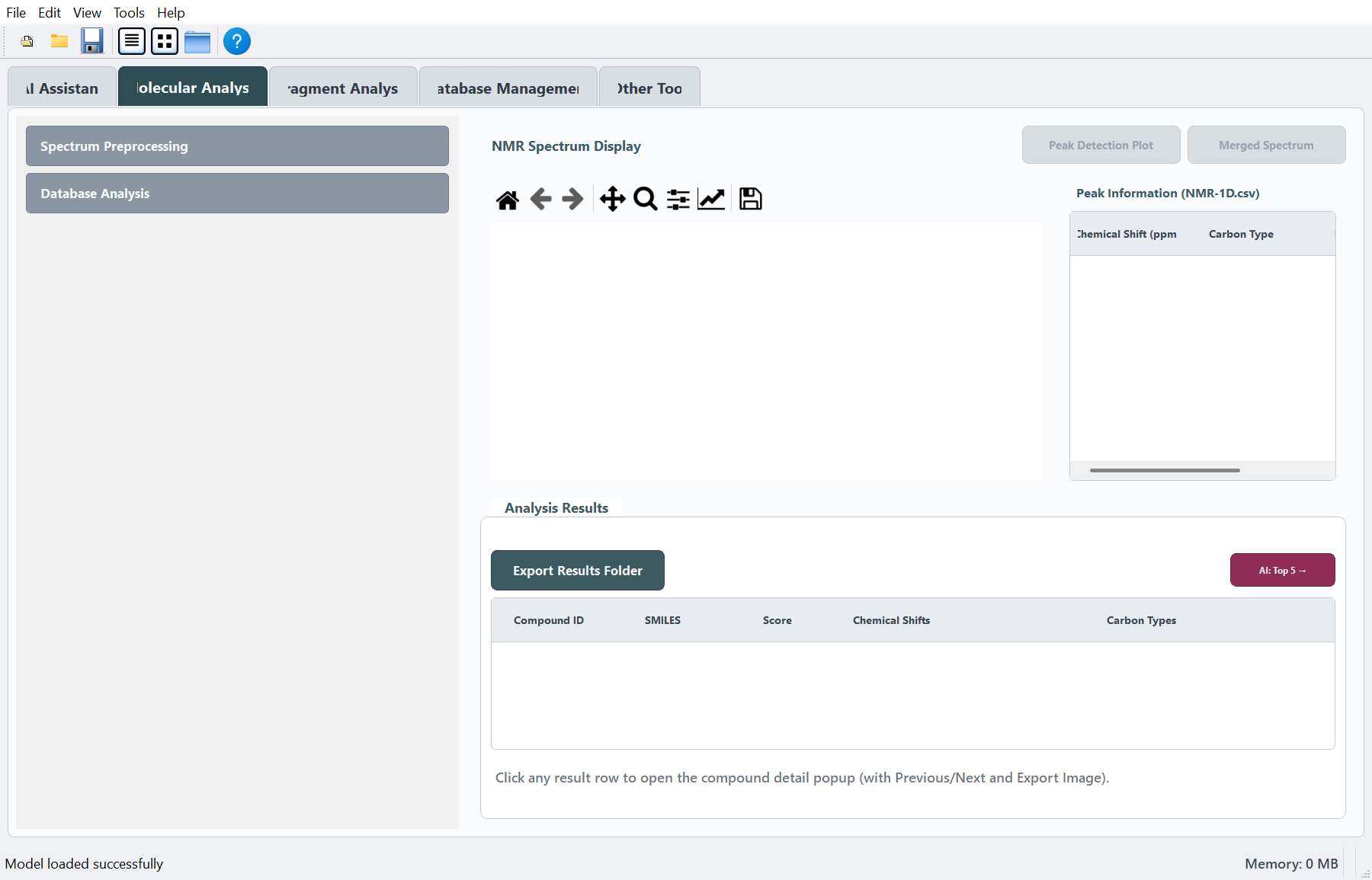
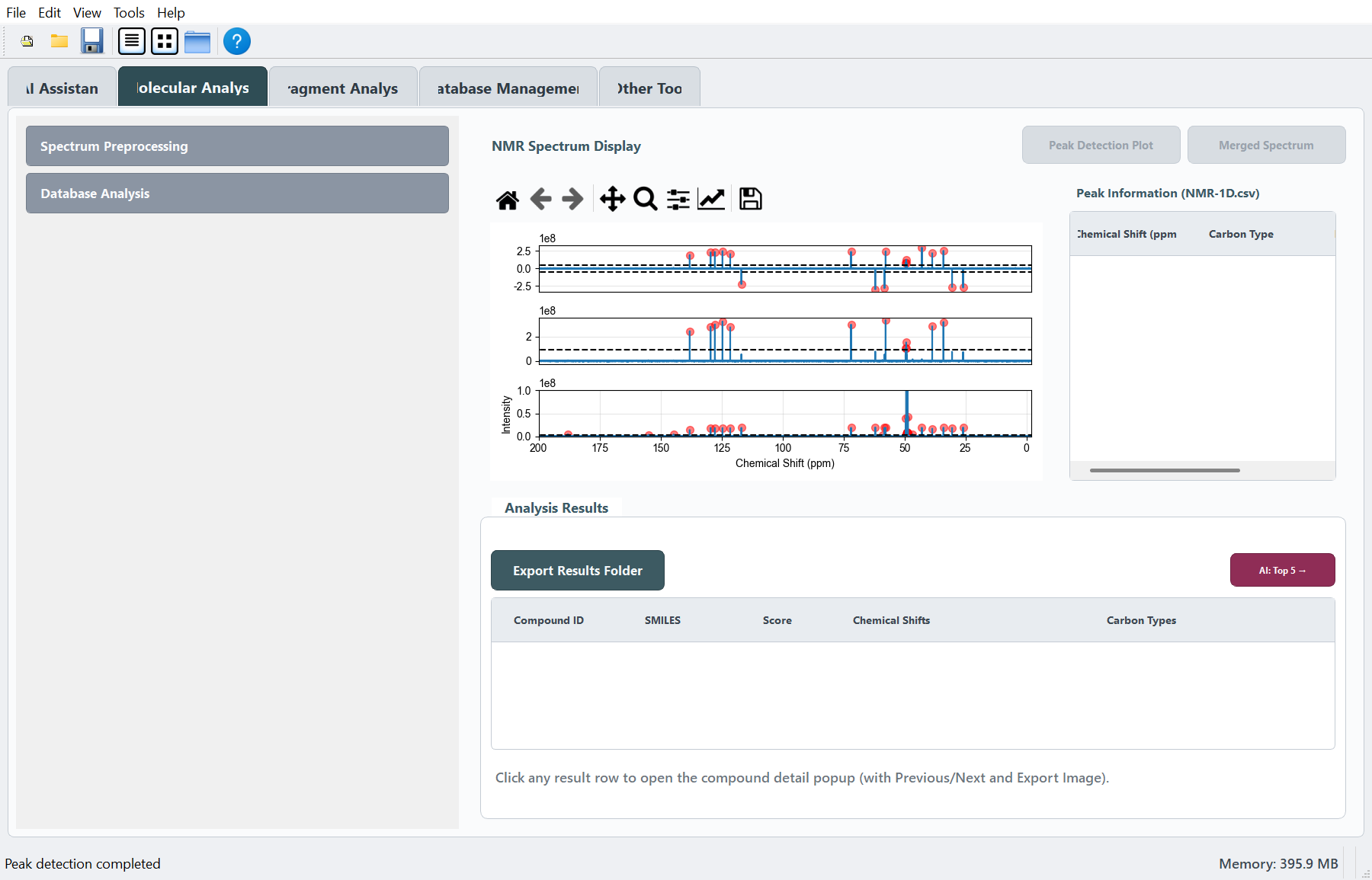
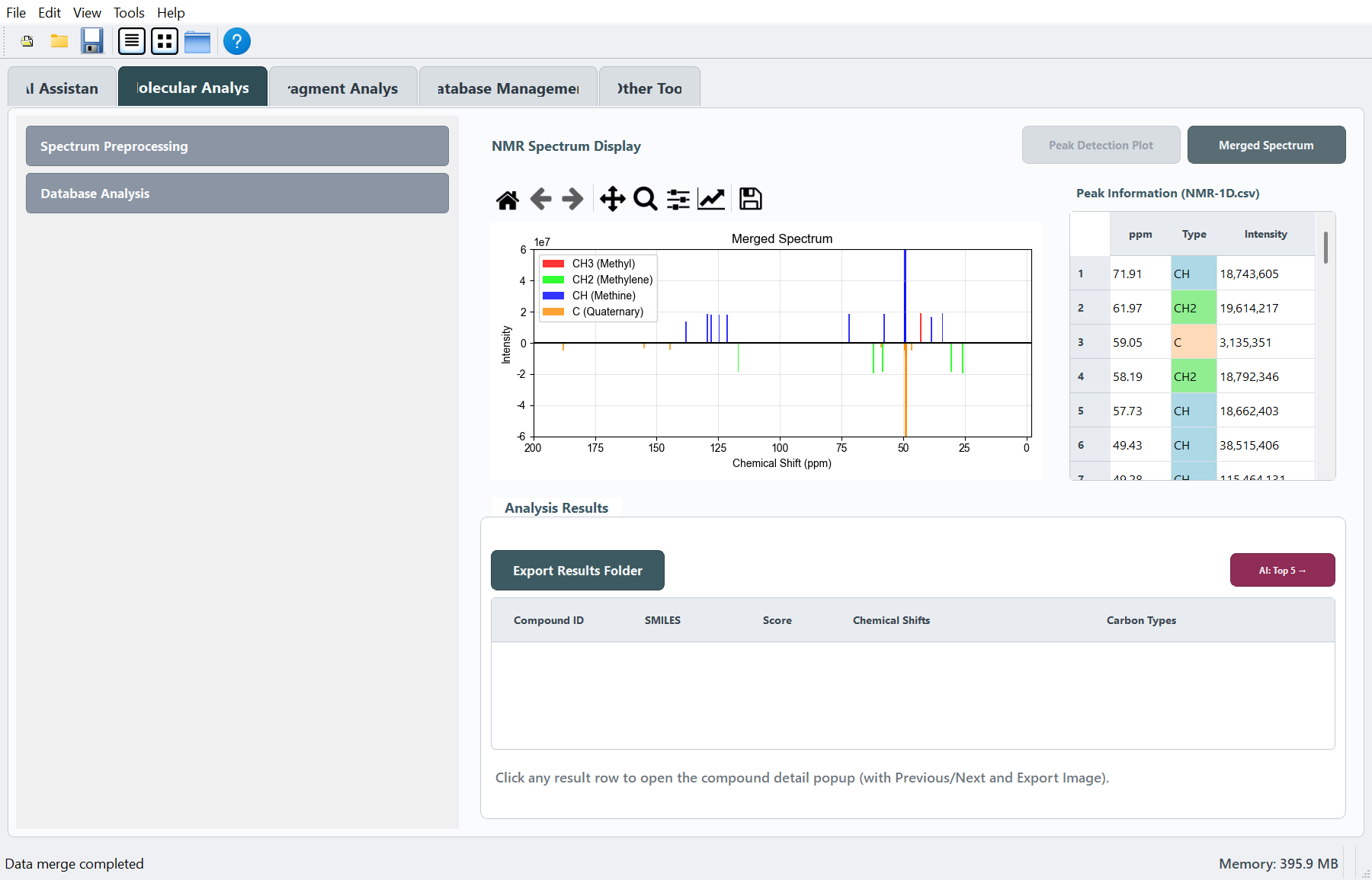
Demo run screenshots
These screenshots were captured from the live GUI after running the bundled
demo Bruker data (test/NMRsample/4/pdata/1, test/NMRsample/8/pdata/1,
test/NMRsample/6/pdata/1) with the default peak-picking thresholds, Plant
database, CNF/CTNF filters, and the default FPAACS evaluator.
Global menus
The current GUI uses a top menu bar and no default toolbar.
| Menu | Main actions |
|---|---|
| File | New / Open / Save project, import NMR or SMILES, export results to CSV, exit |
| Edit | Preferences for AI / LLM provider and API key |
| View | Status bar toggle, reset layout |
| Tools | Peak Detection, Data Analysis, Database Management, Settings placeholder |
| Help | Documentation, About VirMolAnalyte |
Shared output directory
Automatic outputs are written to:
GUI_result_files/
Common files include:
| File | Typical source |
|---|---|
NMR-1D.csv |
Molecular Analysis Merge, solvent removal, impurity removal, or export |
Result.csv |
Molecular Analysis Start Analysis or Export Results Folder |
analysis_parameters.txt |
Export Results Folder |
Top20_structures_5x4.png |
Export Results Folder |
ai_log.jsonl |
AI Assistant LLM actions |